
Troubleshooting
Find out what went wrong with Diagnostics, and what to do about the common problems.
Diagnostics
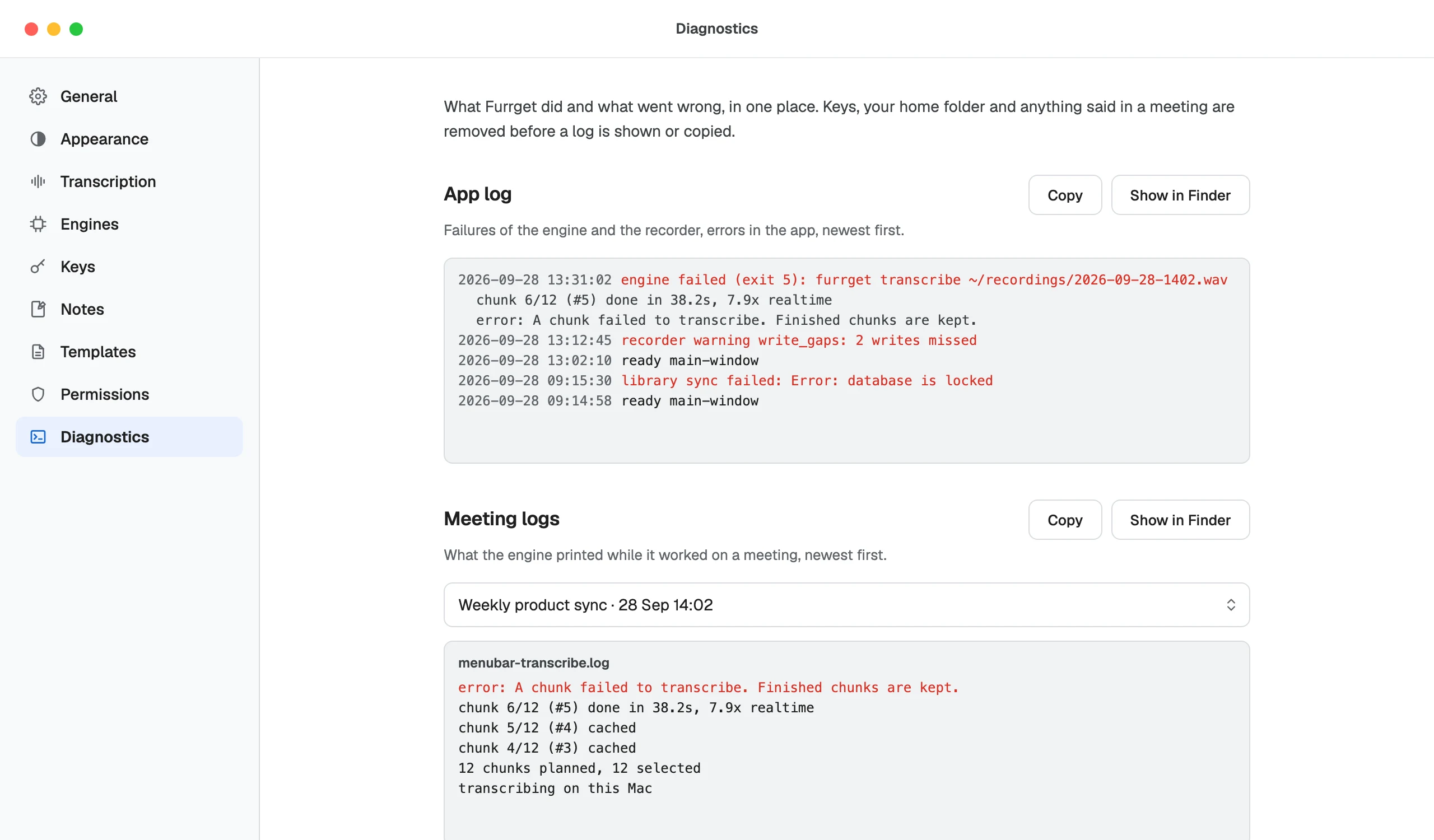
Settings › Diagnostics shows what Furrget did and what went wrong, in one place:
- App log: failures of the engine and the recorder, and errors in the app, newest first.
- Meeting logs: pick a meeting to see its own log.
Copy copies a log; Show in Finder (or File Explorer) opens its folder. Keys, your home folder and anything said in a meeting are removed before a log is shown or copied, so you can paste it to support@furrget.app safely.
Common problems
| You see | What to do |
|---|---|
| Furrget isn’t hearing anything from … while recording | Check the microphone with Open Sound settings, or Stop recording and record again. See Recording and the rail. |
| A meeting marked Didn’t finish | Open it and choose Try again. Show log opens its log in Diagnostics. |
| Notes couldn’t be written | Every engine in your list failed. What each engine said shows why; fix the engine or key, then Try again. |
| The Whisper model isn’t downloaded yet. | Let the download finish; it picks up where it left off. |
| Furr’s key was rejected. | Paste a new key in Settings › Keys. |
| Furr couldn’t reach its checking service | Check your connection and try again. |
| No speech was found in the recording. | The recording had no voices. Check that the right microphone was in use. |
| PDF skipped on export | Install LibreOffice, then export again. |
Permissions
If recording stops working after a system update, open Settings › Permissions. Check again and Test again recheck the microphone and system audio; on a Mac, Open the drag helper shows where to allow Furrget.
Still stuck? Write to support@furrget.app and paste the log from Diagnostics.