
Furr's notes
How Furr drafts your notes, checks every point against the transcript, and what you can change.
Your notes and Furr’s notes
A meeting page has two kinds of notes:
- Your notes are what you type during the meeting. Furr reads them as guidance.
- Furr’s notes are drafted from the transcript after the meeting, then checked point by point.
Once Furr’s notes exist, a switch at the top of the page moves between Your notes and Furr’s notes. Anything you were typing stays where it was.
When Furr writes the notes
Settings › Notes › After a meeting decides it:
- Always, after every meeting: notes appear on the meeting page by themselves.
- Ask me each time: the meeting page shows a Generate notes button instead.
The first time, Furrget asks for your OK before any text leaves your computer: Let Furr write notes after your meetings? It lists where the text goes, and a new engine or checking service asks again. The audio never leaves your computer for notes. See Privacy and Confidential meetings.
Analyzing
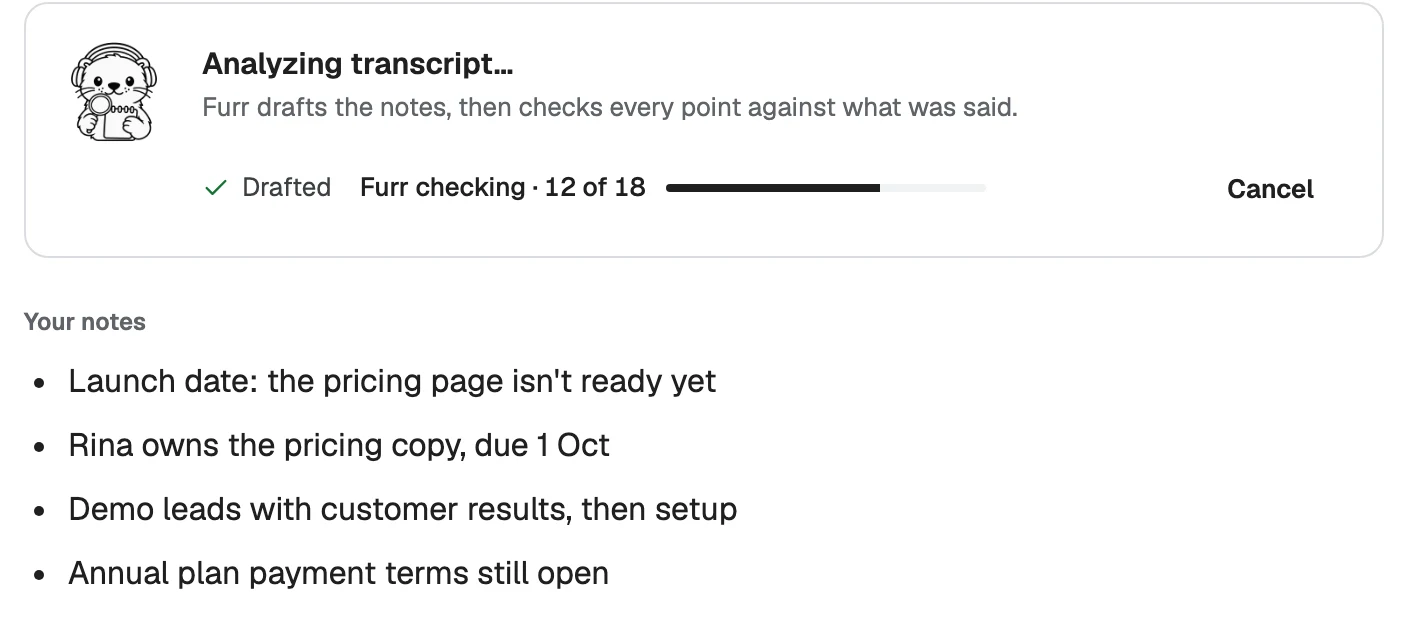
Analyzing transcript… has two parts: the engine you chose drafts the notes, then Furr checks every point against what was said, with a counter as it goes. You can Cancel.
Reading the notes
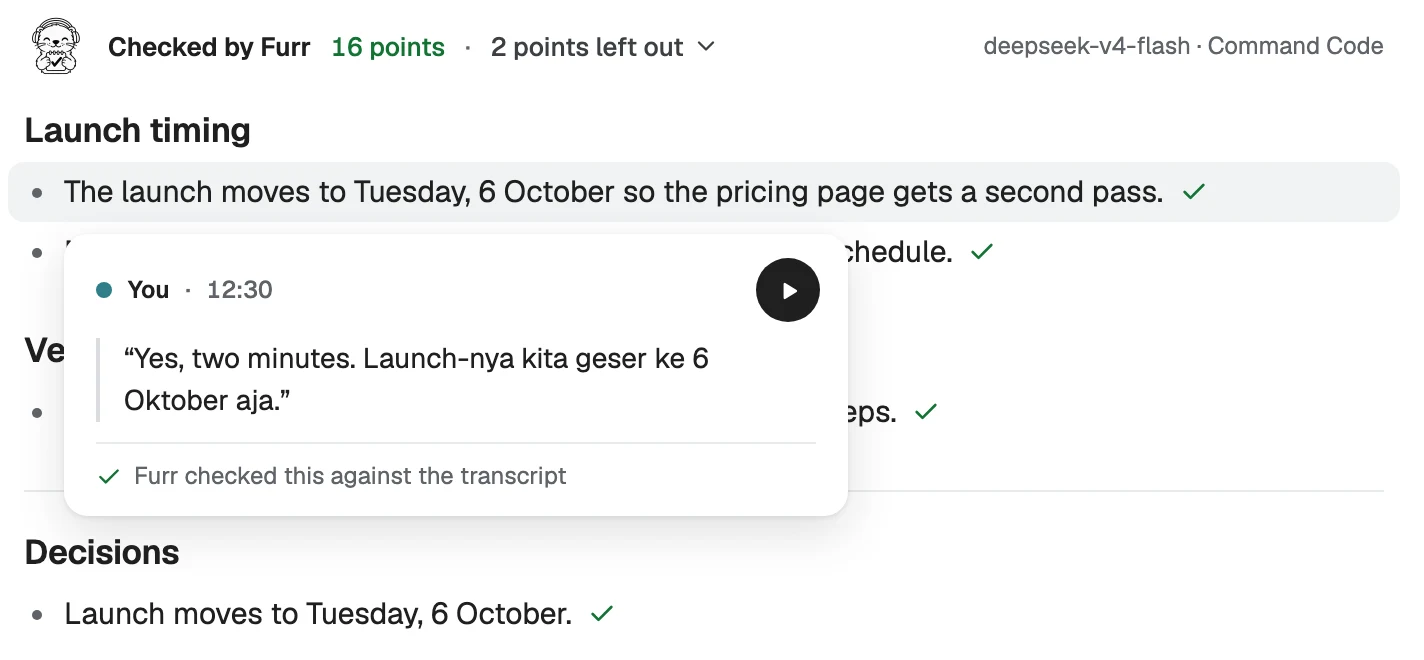
The line at the top reads like Checked by Furr · 16 points · 2 points left out, with the engine and model on the right.
- A point with a check mark was found in the transcript. Hover over it, or move to it with the keyboard, to see who said it, when, and the exact quote. Play this passage plays that moment.
- Decisions and action items have their own sections. An action item shows an owner and a due date when Furr could confirm them; an owner Furr is unsure of shows ? so you can Check who owns this. Change either by clicking it.
Points left out
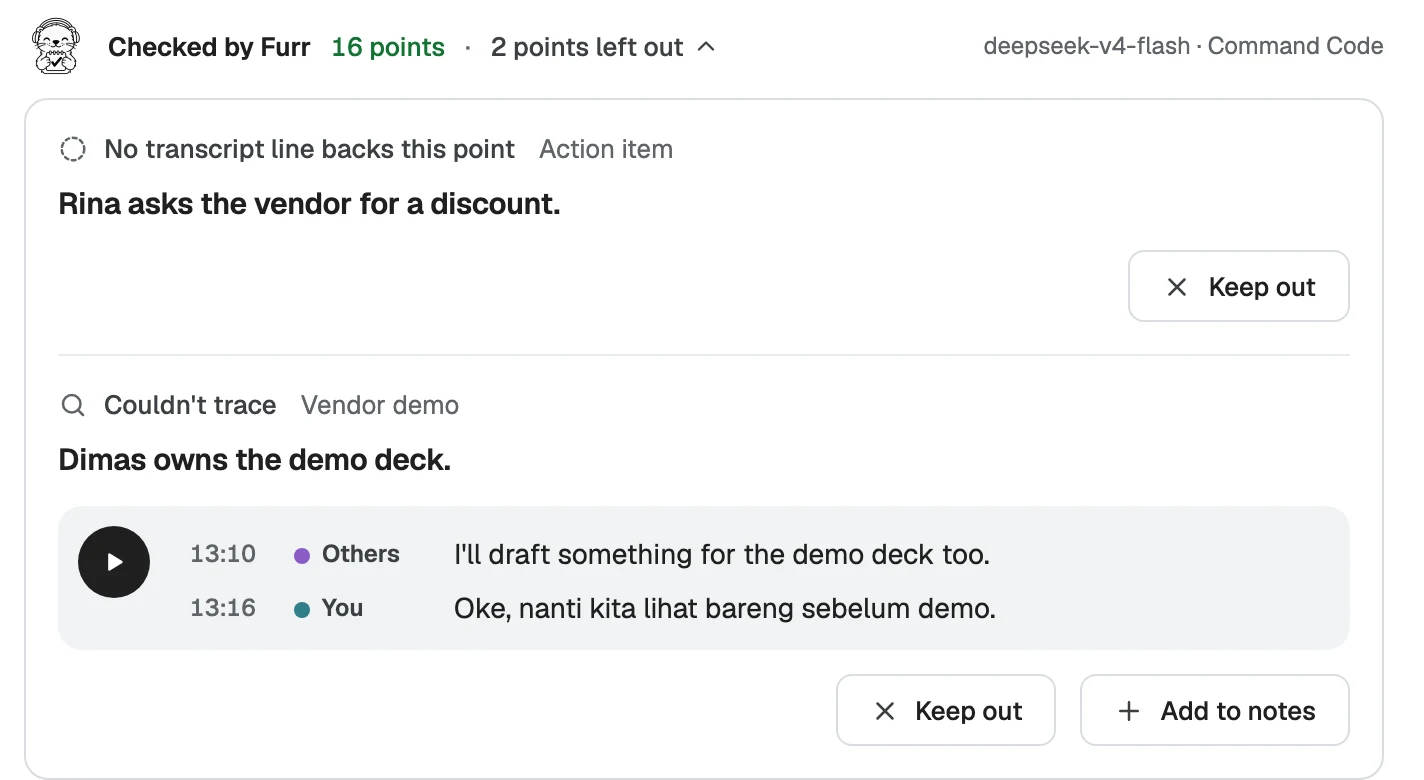
Furr leaves a point out when no line of the transcript supports it, when it is not what was said, or when it could not be traced. Open points left out to see each one with its reason and the lines Furr compared it with.
- Keep out leaves it out of your minutes.
- Add to notes puts it back. If Furr found it was not said, you are asked first: Furr found this wasn’t said. Add it anyway? A point you add this way becomes your own point, unchecked, and goes into the Word, PDF and Markdown files.
Your choices are listed under Points reviewed, each with Undo.
Editing
- Click a point, or press Enter on it, to edit. Esc cancels. Clearing the text deletes the point, and Undo brings it back.
- Add a point adds one to a topic, and you can rename a topic.
- An edited or added point is marked as yours, with a dot and the tooltip Yours: edited or added by you. It loses its check mark, because Furr checked the original words, not yours.
Writing the notes again
Regenerate notes in the meeting’s menu writes Furr’s notes again from the transcript. If you have edited them, Furrget asks Replace your edits? first: Keep my edits or Replace.
Confidential meetings
Notes for a Confidential meeting are never written by themselves. Generate notes on this computer uses only an engine that runs on your computer, and nothing goes to the checking service, so the points show Not checked · Confidential meeting, nothing left the computer.